Feedback
Feedback is the core data of ABC User Feedback. This document covers all features related to feedback, from creation to analysis and management.
Creating Feedback
Feedback is mainly created by external systems (websites, mobile apps, API integration), but administrators can also create it directly.
Creating Feedback via API
This is the most common method of creating feedback.
Basic API Request Structure
curl -X POST http://your-domain.com/api/v1/projects/{projectId}/channels/{channelId}/feedbacks \
  -H "Content-Type: application/json" \
  -H "X-API-KEY: YOUR_API_KEY" \
  -d '{
    "message": "User feedback content",
    "userEmail": "user@example.com",
    "category": "Bug Report"
  }'
Request Examples by Channel Fields
The request structure varies depending on each channel's field settings:
Web Feedback Channel Example:
{
  "message": "Login button is not working",
  "userEmail": "user@company.com",
  "pageUrl": "https://example.com/login",
  "category": "Bug",
  "priority": "High",
  "browserInfo": "Chrome 119.0.0"
}
Mobile App Channel Example:
{
  "message": "App freezes frequently",
  "rating": 2,
  "appVersion": "v2.1.3",
  "deviceType": "iOS",
  "crashLogs": "Exception in thread main..."
}
Feedback with Images
When using image URL method:
{
  "message": "Screen appears broken",
  "userEmail": "user@example.com",
  "images": [
    "https://cdn.example.com/screenshot1.png",
    "https://cdn.example.com/screenshot2.png"
  ]
}
Verifying Feedback Creation
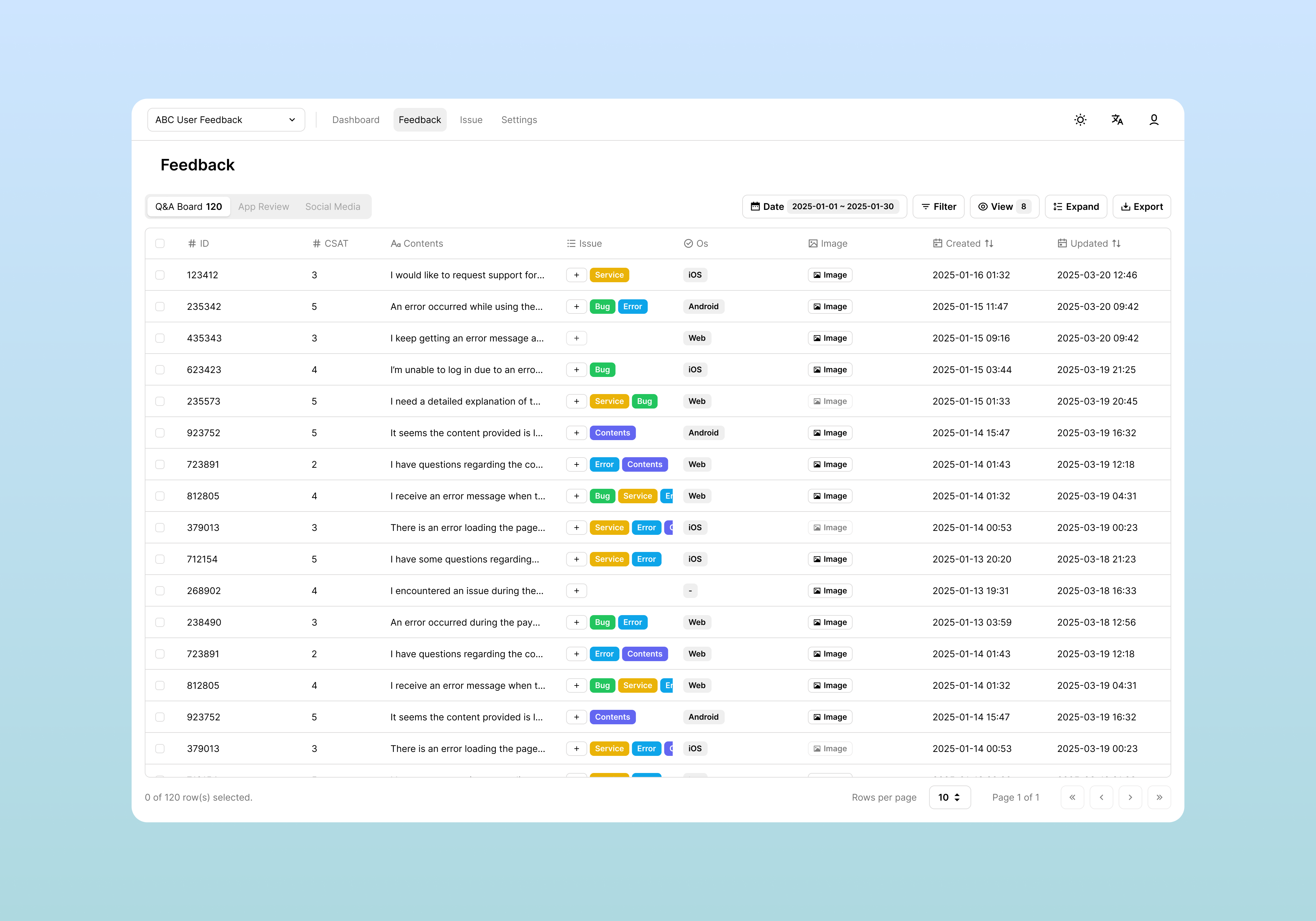
Created feedback is immediately displayed in the feedback list.
Accessing Feedback List
Access the feedback list to view and manage created feedback.
Access Method
- Select the desired project from the left sidebar
- Click the desired channel from the channel list at the bottom
- Select the Feedback tab in the top menu
Feedback Table Structure
The feedback list is displayed in table format with the following basic structure:
| Column Type | Description | Example |
|---|---|---|
| Default Columns | Displayed for all channels | ID, Created, Updated, Issue |
| Custom Columns | Displayed according to channel field settings | Message, UserEmail, Category |
Feedback Filtering/Sorting/View Options
Various tools are provided to quickly find desired information from large amounts of feedback data.
Date Filtering
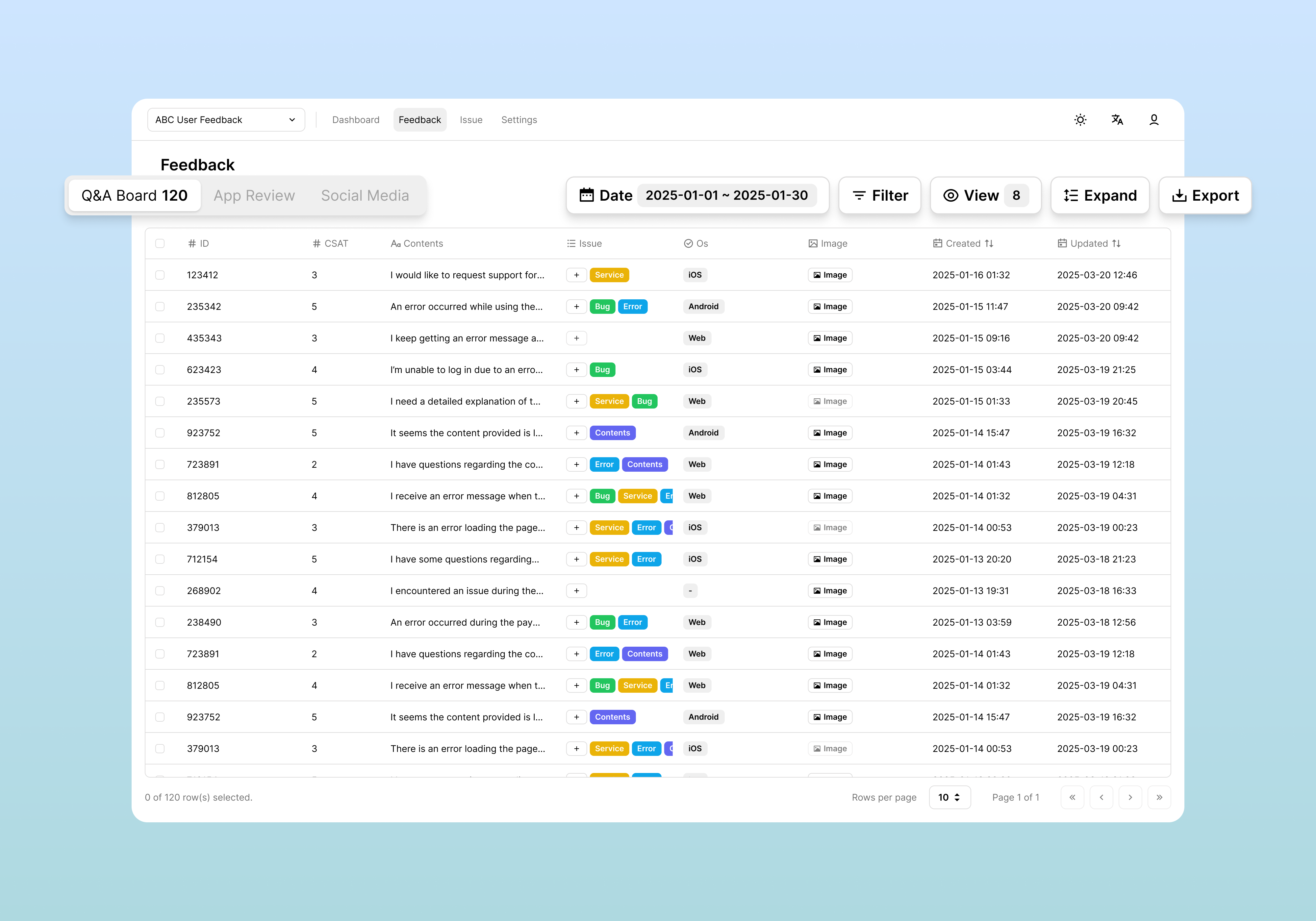
You can set the viewing period with the Date button at the top.
Available Period Options
| Option | Description | Use Case |
|---|---|---|
| Today | Feedback registered today | Real-time monitoring |
| Yesterday | Previous day's feedback | Daily review |
| Last 7 Days | Recent 1 week of data | Weekly analysis |
| Last 30 Days | Recent 1 month of data | Monthly trend analysis |
| Custom | Set start-end date directly | Specific period analysis |
Filters
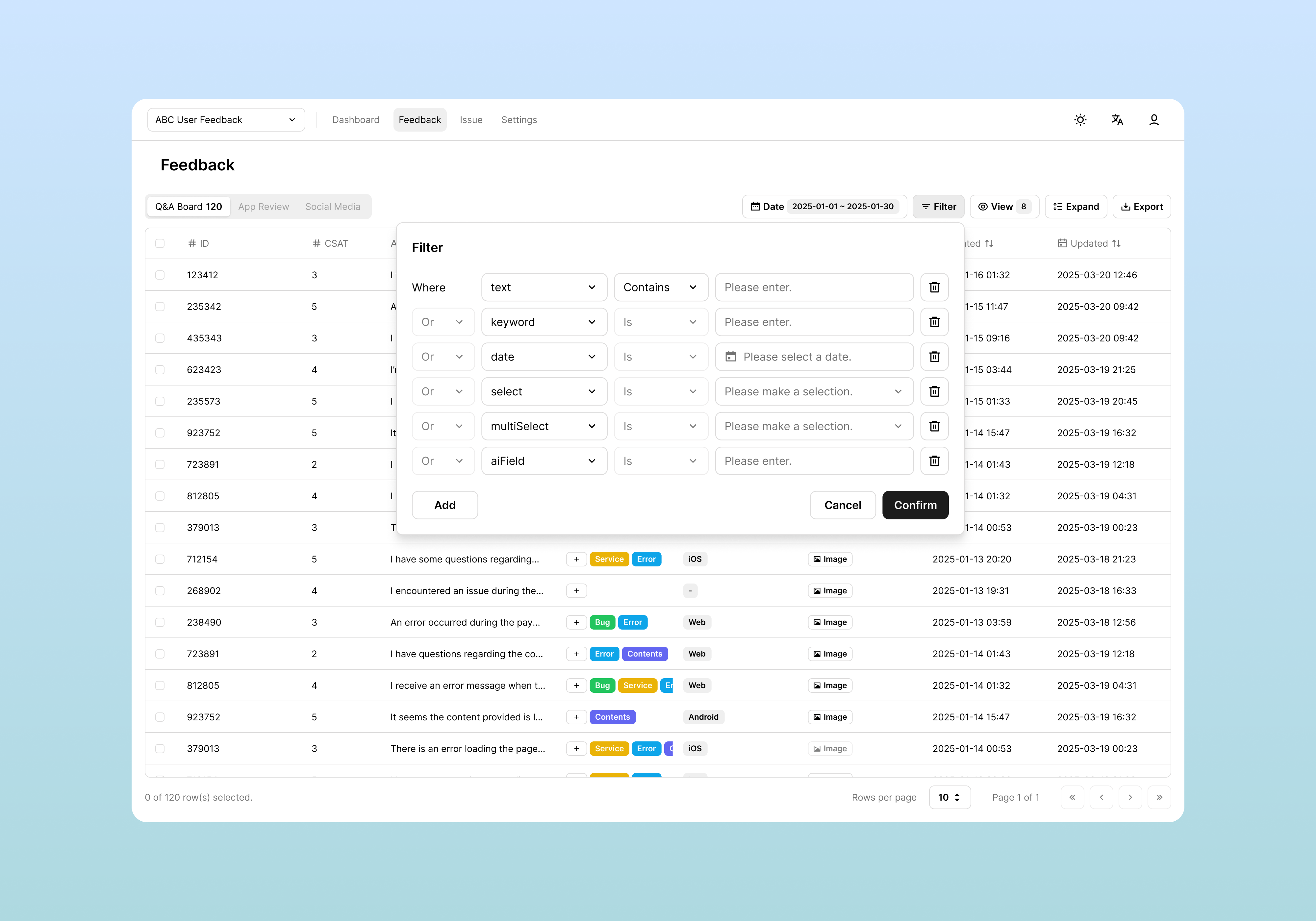
Click the Filter button to filter feedback by various conditions.
Filter Structure
Where: First condition
And: Feedback that satisfies all conditions
Or: Feedback that satisfies at least one condition
Note:
AndandOrcannot be mixed at the same time.
Filter Options by Field Type
| Field Type | Available Operators | Example |
|---|---|---|
| text | Contains (partial match) | message contains "bug" |
| keyword | Is (exact match) | category is "Feature Request" |
| number | Is (exact match) | rating == 3 |
| select | Is (exact match) | |
| multiSelect | Is (exact match), Contains (partial match) | |
| aiField | Contains (partial match) | |
| date | Is (exact match), Between (period match) | created between date range |
Filter Usage Examples
Advanced Search for Multi-Select Category:
Where: category contains "Bug"
And: priority is "High"
Finding Feedback Linked to Multiple Issues:
Where: issues contains "Login Issue"
Or: issues contains "UI Improvement"
Finding 4-Rating Feedback in Specific Category:
Where: category is "Feature Request"
And: rating is 4
Sorting Function
Click table headers to sort by that column. This feature is available for Created and Updated columns.
View Options
You can adjust the display method of the feedback list to suit your needs.
Expand Feature
Click the Expand button to preview detailed content of each feedback in the table.
Usage:
- Check main content without opening detail panel
- Quickly browse through multiple feedback
- View full content of long text fields
Show/Hide Columns
You can select columns to display with the View button at the top of the table.
Features:
- Required columns: ID, Created are always displayed (cannot be hidden)
- Optional columns: Custom fields can be individually shown/hidden
- Screen optimization: Efficiently use screen space by displaying only needed information
Usage Tips:
For monitoring: Display only ID, Created, Message
For analysis: Display all custom fields
For review: Display Message, Category, Priority
Viewing/Editing/Deleting Feedback
You can view detailed information of individual feedback and edit or delete it as needed.
Viewing Feedback Details
Access Method
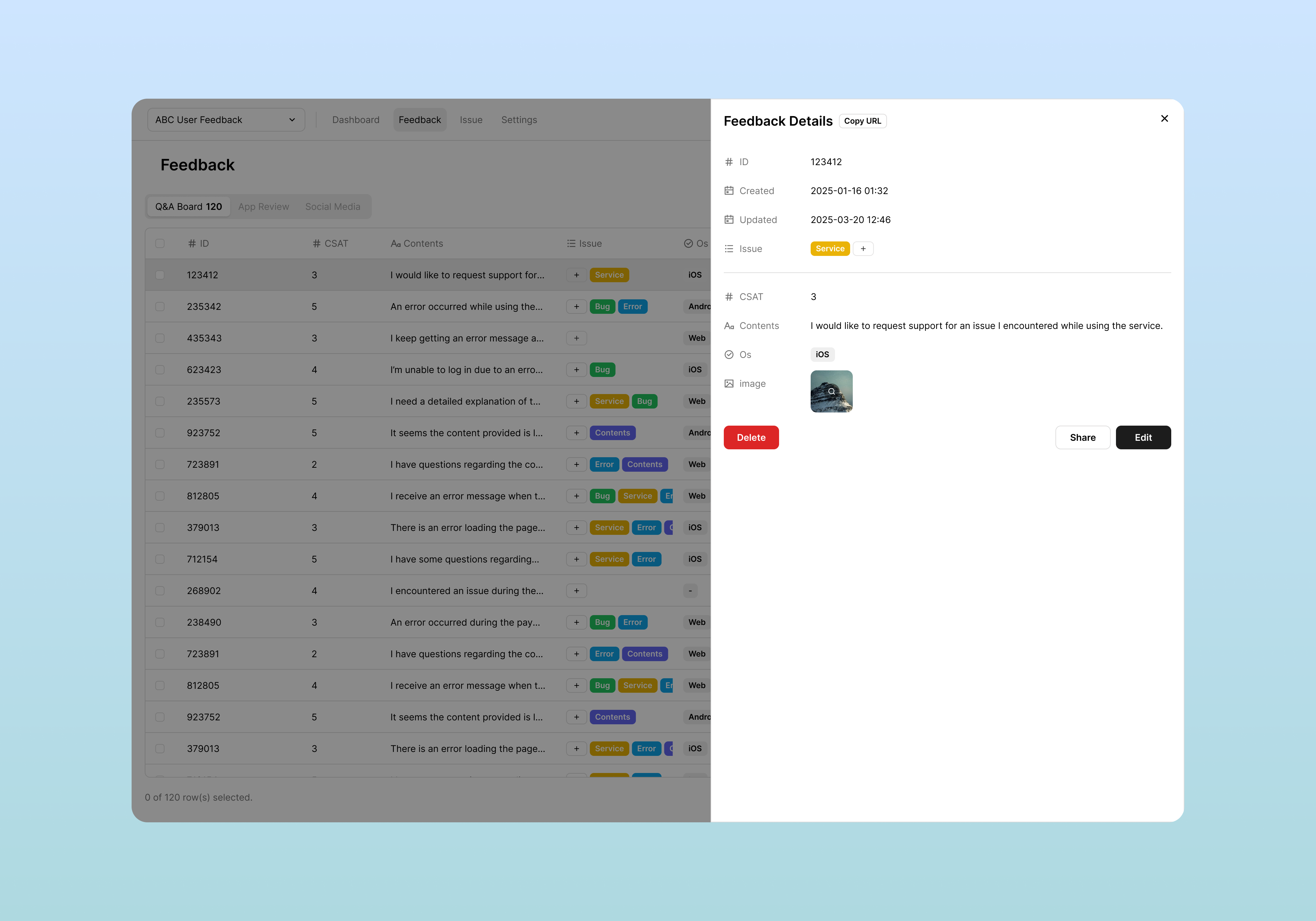
Click a row in the feedback table to open the detail view panel on the right.
Detail Panel Structure
The detail panel is structured as follows:
1. Basic Information Area
- Feedback ID: Unique identification number
- Creation Time: Initial registration date/time
- Modification Time: Last change date/time
- Issues: Tagged issues
2. Custom Fields Area
All custom fields set in the channel are displayed.
Editing Feedback
Editable Fields
Click the Edit button in the detail panel to switch to edit mode.
Editable Items
| Item | Editable | Notes |
|---|---|---|
| Default Fields | ❌ No | ID, creation date, etc. |
| Custom Fields | ✅ Yes | Varies by field setting Property, not possible if Status is Inactive |
Completing Edits
- Modify necessary information
- Click the Save button
- Changes are immediately reflected and "Updated" time is refreshed
Issue Link Management
Creating New Issue
- Click the + button in the issue column
- Enter the issue name and click the Create option
Linking Existing Issue
- Click the + button in the issue section
- Enter the name of the issue to link
- Select the issue to link from the dropdown
Unlinking Issue
- Click the + button in the issue section
- Select the issue to unlink
Deleting Feedback
Single Feedback Deletion
- Click the Delete Feedback button at the bottom of the detail panel
- Approve deletion in the confirmation dialog
Multiple Feedback Deletion
- Select multiple feedback using checkboxes in the feedback list
- Click the Delete Selected button that appears at the top
- Confirm batch deletion
Deletion Notes
- Cannot be recovered: Deleted feedback cannot be restored
- Issue links removed: Linked issues remain but links are removed
- Statistics impact: Data is excluded from dashboard statistics
Downloading Feedback
You can export collected feedback data in various formats for analysis or backup.
Accessing Download Function
Download All Feedback
- Click the Export button at the top of the feedback list
Download Filtered Feedback
- Apply filtering with desired conditions
- Click the Export button to download only data matching current filter conditions
Download Selected Feedback
- Select specific feedback using checkboxes
- Click the Export Selected button
Download Format Selection
When clicking the Export button, you can select the download format.
Supported Formats
| Format | Extension | Advantages | Recommended Use Cases |
|---|---|---|---|
| CSV | .csv | Lightweight and highly compatible | Excel, Google Sheets analysis |
| Excel | .xlsx | Format preservation, multi-sheet support | Detailed analysis, report creation |
Related Documents
- Channel Management - Channel and field settings for feedback collection
- Issue Management - Creating and managing issues from feedback
- API Integration - How to send feedback from external systems