Channel
A Channel is a unit that distinguishes feedback collection paths or purposes. Each channel has an independent field structure, image settings, and AI features, allowing configuration for various feedback collection scenarios.
Channel Overview
Role of Channels
Channels serve the following roles:
- Distinguish feedback collection paths: Web, app, customer service, surveys, etc.
- Define data structure: Unique field settings per channel
- Manage collection policies: Image allowance, search period, security settings, etc.
- Provide analysis units: Independent statistics and analysis per channel
Creating a Channel
Access Method
To create a new channel:
- Right after project creation: Click the Create Channel button on the project completion screen
- Additional channel creation: Click the Create Channel button in Settings > Channel List
Step 1: Channel Basic Information
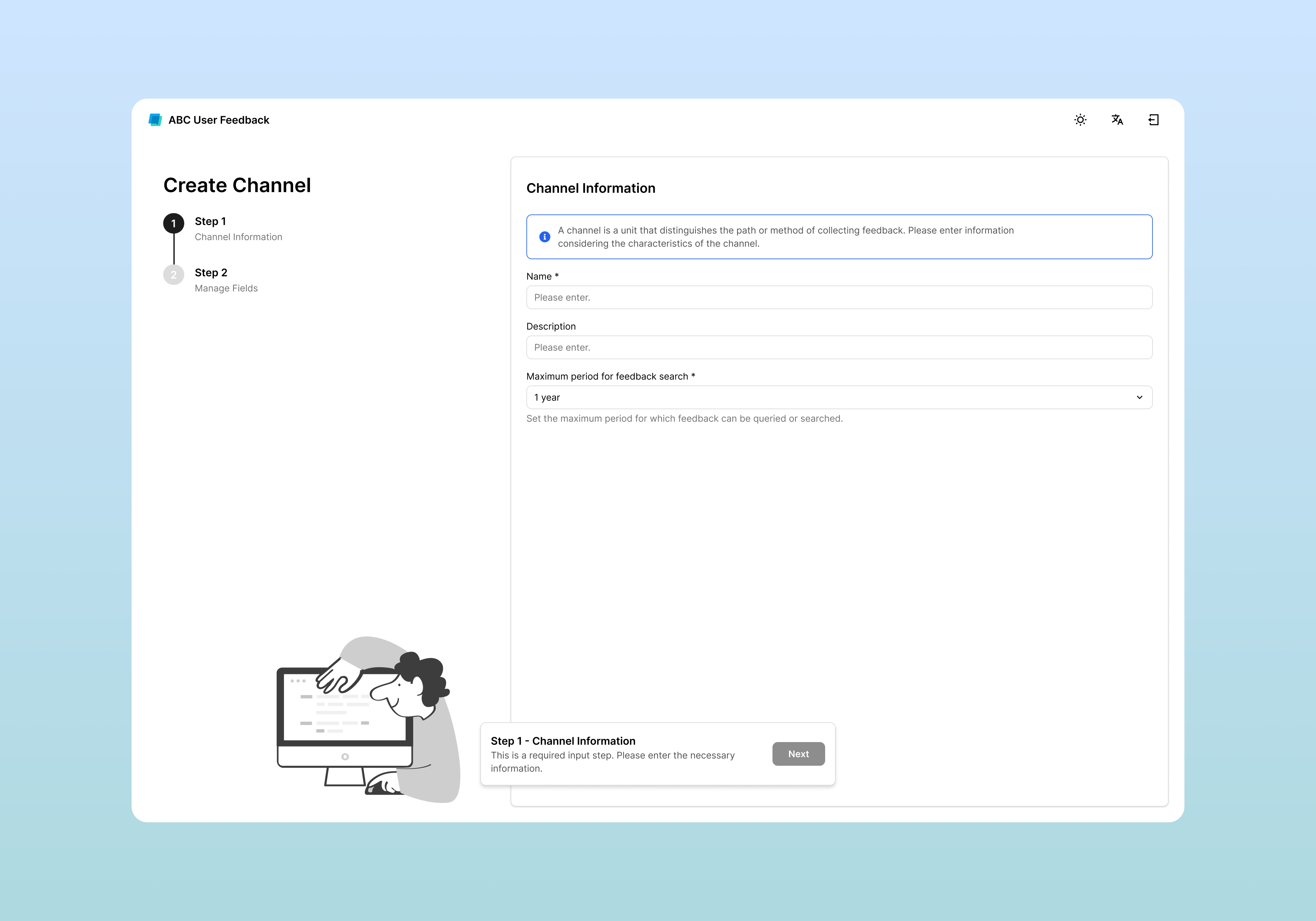
| Item | Description | Example |
|---|---|---|
| Name | Channel name (required) | Web Feedback, App Review, Customer Service |
| Description | Brief channel description (optional) | Website user opinion collection |
| Maximum Feedback Search Period | Maximum searchable period for feedback (30/90/180/365 days, all) | 90 days |
Notes on Maximum Feedback Search Period Setting
- Impact scope: Directly affects the feedback download functionality
- Download behavior: All feedback within the set search period becomes the download target
- Performance testing: If daily feedback count is high, test with various periods to find the optimal value
- Gradual adjustment: Start with a short period and gradually increase as needed
After completion: After entering the information, click the Next button.
Step 2: Field Configuration

Define the data structure to collect in the channel. This directly affects the API request structure and feedback table configuration.
Default System Fields
Fields automatically included in all channels:
| Key | Format | Property | Description |
|---|---|---|---|
id | number | Read Only | Unique feedback ID |
createdAt | date | Read Only | Feedback creation time |
updatedAt | date | Read Only | Feedback modification time |
issues | multiSelect | Editable | List of linked issues |
These fields cannot be deleted or have their main properties modified.
Adding Custom Fields
Add fields that match actual business requirements.
- Click the Add Field button
- Enter field information
| Item | Description | Example |
|---|---|---|
| Key | Unique identifier (uppercase/lowercase letters, numbers, _) | message, rating |
| Display Name | Name displayed in UI | Feedback Content, User Email |
| Format | Data format (see table below) | text, keyword, number |
| Property | Editable (can input) / Read Only (view only) | Editable |
| Status | Active / Inactive | Active |
| Description | Easy-to-understand description for team members (optional) | User-entered feedback content |
Field Format Types
| Format | Description | Usage Example | API Example |
|---|---|---|---|
text | Free text input | Feedback content, detailed description | "App keeps freezing" |
keyword | Short keyword/tag | Version info, page name | "v1.2.3" |
number | Number | Rating, age, usage time | 5 |
date | Date | Occurrence date, expiration date | "2024-03-01T00:00:00Z" |
select | Single selection | Category, priority | "Feature Request" |
multiSelect | Multiple selection | Tags, related features | ["Bug", "UI"] |
images | Image URL array | Screenshots, attachments | ["https://..."] |
aiField | AI analysis result field | Sentiment analysis, summary, keyword extraction | "Positive" |
About images format: For detailed image setting methods, refer to the Image Settings document.
About aiField format: For AI field settings and template configuration methods, refer to the AI Settings document.
Field Configuration Examples
Web Feedback Channel
| Key | Display Name | Format | Purpose |
|---|---|---|---|
message | Feedback Content | text | User opinion |
userEmail | keyword | Contact (optional) | |
pageUrl | Page URL | keyword | Feedback occurrence location |
category | Category | select | Bug/Feature Request/Improvement |
priority | Priority | select | High/Medium/Low |
screenshots | Screenshots | images | Problem situation capture |
Mobile App Review Channel
| Key | Display Name | Format | Purpose |
|---|---|---|---|
message | Review Content | text | User review |
rating | Rating | number | 1-5 point rating |
appVersion | App Version | keyword | For bug tracking |
deviceType | Device Type | select | iOS/Android |
crashLogs | Crash Logs | text | Technical error info |
Field Preview
After completing field configuration, you can preview the actual feedback input screen with the Preview button.
This preview matches the field structure required for API requests.
After completion: Proceed to the next step with the Next button.
Step 3: Channel Creation Complete
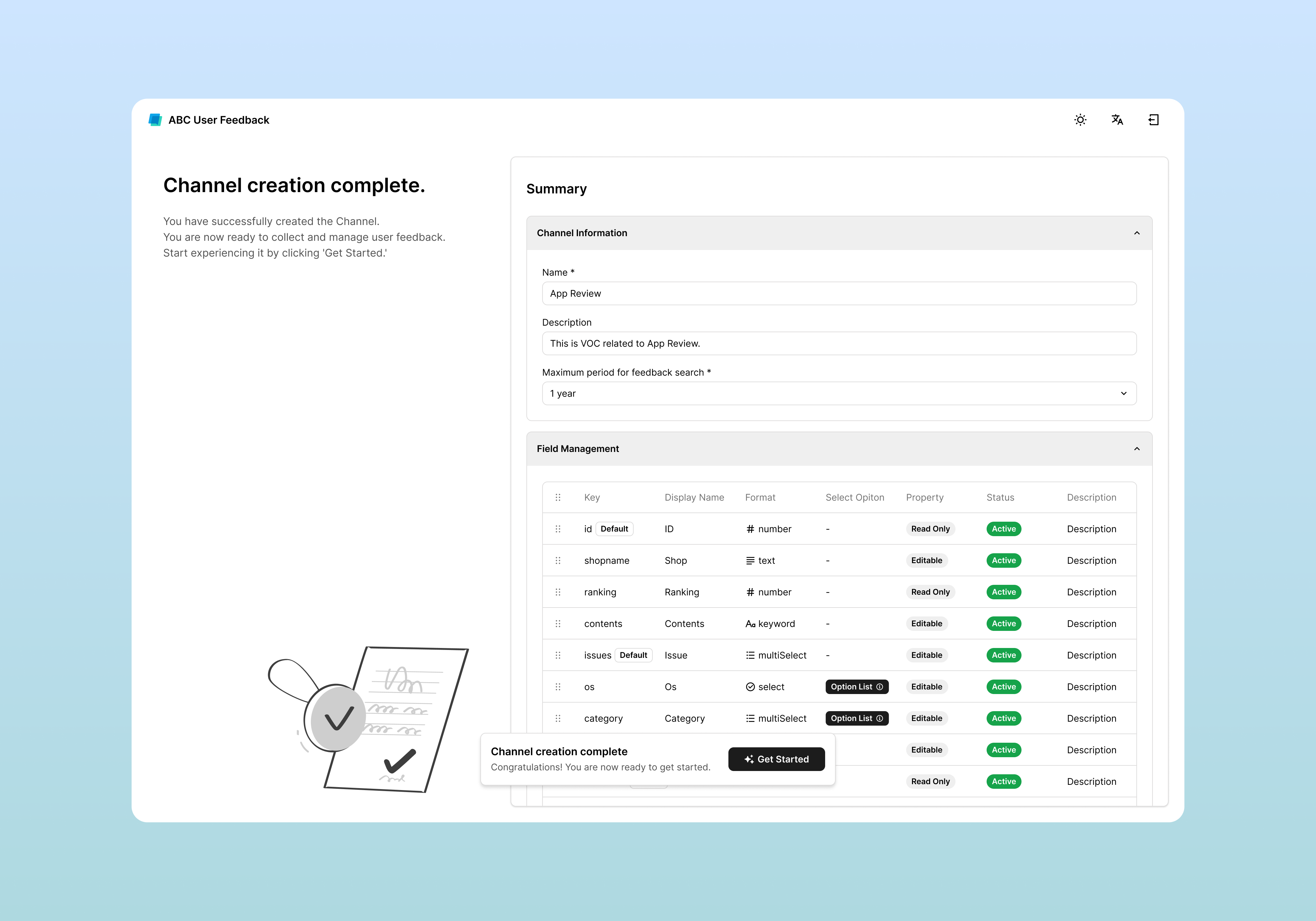
Once all steps are completed, a summary screen appears:
- Channel information: Name, description, time zone
- Field information
Field Management
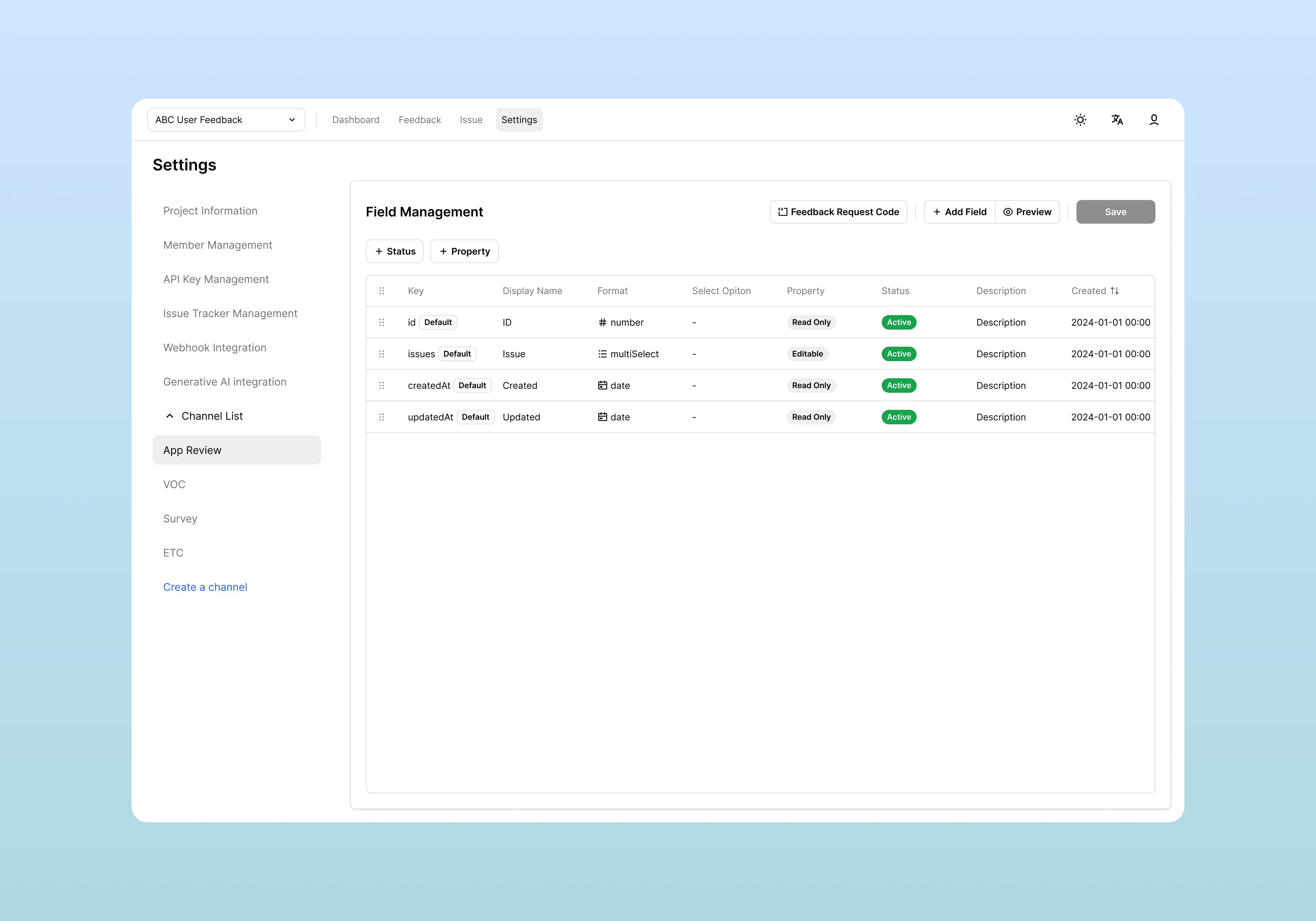
Editing Fields
To modify existing fields, click the row of the field you want to edit in the field list and modify the information.
Note:
KeyandFormatcannot be modified after creation. This is restricted for data consistency.
Field Deletion
To ensure data integrity and consistency, field deletion is not provided.
Recommended Method Instead of Deletion
- Change to Inactive status: Disable the field to exclude it from new feedback collection
- Preserve data: Keep existing collected feedback data as is
- Use filtering: Display only Active fields in the field list for management efficiency
When Complete Removal is Needed
If you need to completely remove a field:
- Consider deleting the entire channel and creating a new one
- Export data and migrate to a new structure
- Consult with the development team for database-level processing
Field Status Management
Active / Inactive Toggle
- Active: Fields used during feedback collection
- Inactive: Temporarily disabled fields (data is preserved)
Filtering Options
You can filter fields by the following conditions using the top controls:
- Status:
Active/Inactive - Property:
Editable/Read Only
Channel Information Management
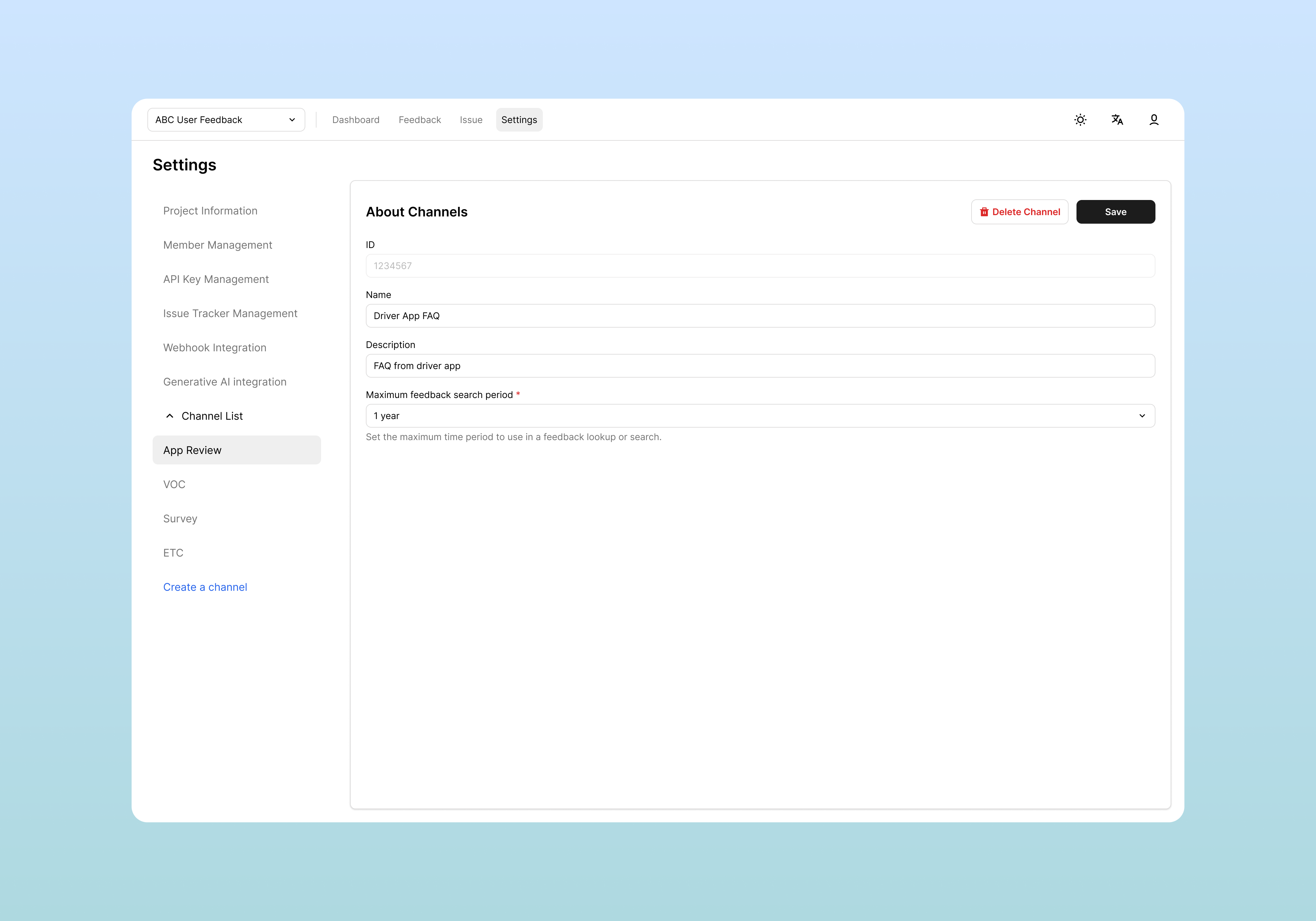
Editing Channel Basic Information
You can modify the basic information of created channels.
Access Method
- Settings > Channel List > [Select Channel]
- Click the Channel Information tab
Editable Items
| Item | Editable | Notes |
|---|---|---|
| Channel ID | ❌ No | Internal system identifier |
| Channel Name | ✅ Yes | Name displayed to team members |
| Description | ✅ Yes | Channel purpose |
| Maximum Feedback Search Period | ✅ Yes | May affect performance |
Channel Deletion
You can delete channels that are no longer in use.
Deletion Procedure
- Click the Delete Channel button at the bottom of the Channel Information screen
- Enter the channel name exactly in the confirmation popup
- Finalize with the Delete button
Deletion Notes
- All feedback data for that channel will be permanently deleted
- Cannot be undone, so backup or export is recommended beforehand
- Related API key settings should also be checked
Related Documents
- Project Management - Project settings and permission management
- Feedback Management - Analysis and utilization of collected feedback
- API Integration - Integration methods with external systems
- AI Integration - AI feature settings