AI Settings
To use generative AI features in ABC User Feedback, you must first set up integration with an AI provider.
After completing AI settings, you can use all features such as AI Field Templates, AI Issue Recommendations, and AI Usage Monitoring.
Access Method
- Click Settings in the top menu
- Select Generative AI Integration from the left menu
- Click AI Setting in the top tabs
AI Provider Selection and Settings
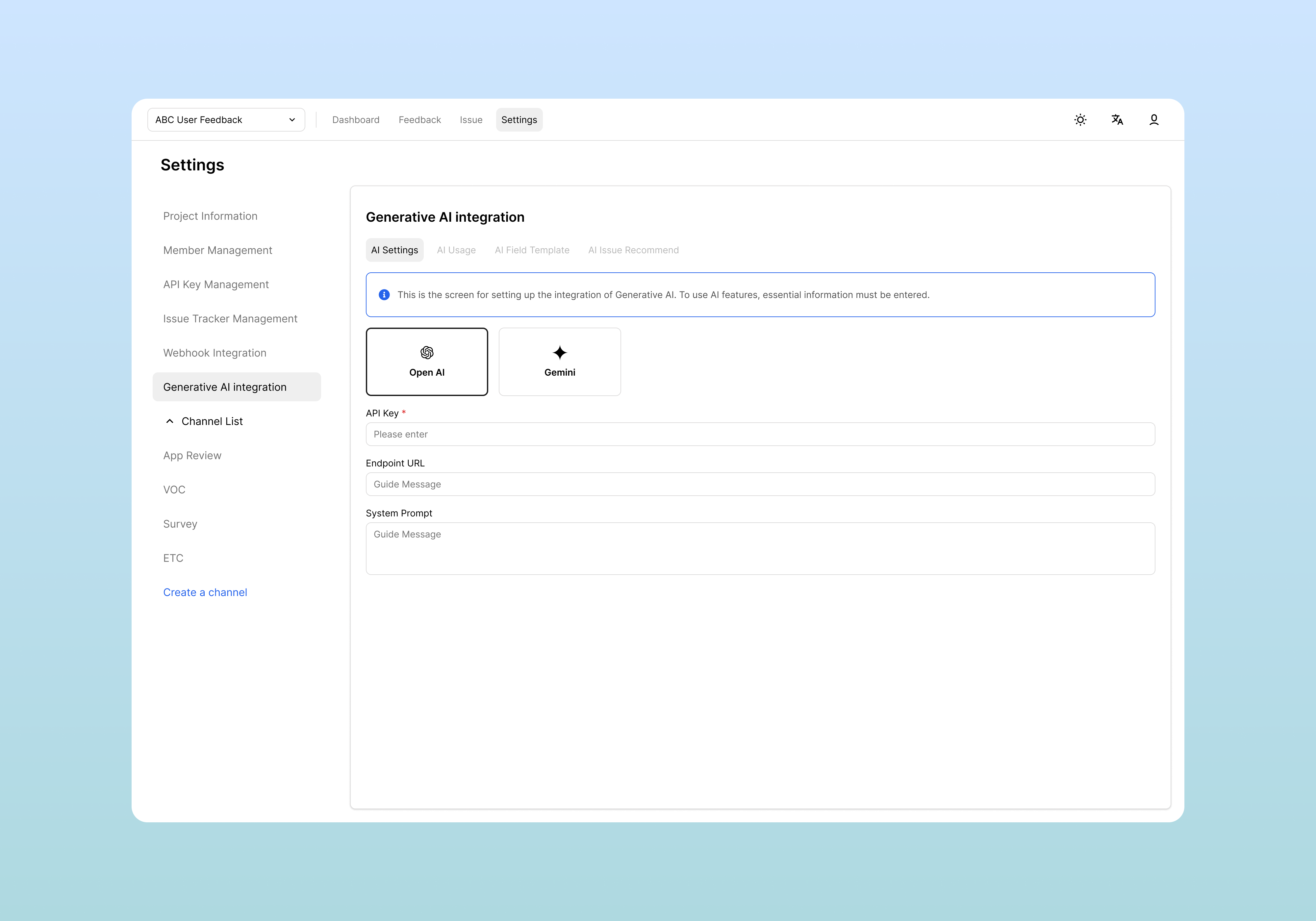
1. Provider Selection
Select one of the currently supported AI providers: OpenAI, Google Gemini:
2. API Key Input
Enter the API key issued from the selected AI provider.
3. Base URL Setting (Optional)
In most cases, leave it empty and the default value will be used automatically.
Enter only when using special endpoints or proxy servers.
4. System Prompt Setting (Optional)
You can set basic instructions that the AI will reference when processing all requests.
Use this when you have organizational tone and manner or special requirements.
5. Save Settings
After entering all information, click the Save button at the top right.
AI Usage Monitoring
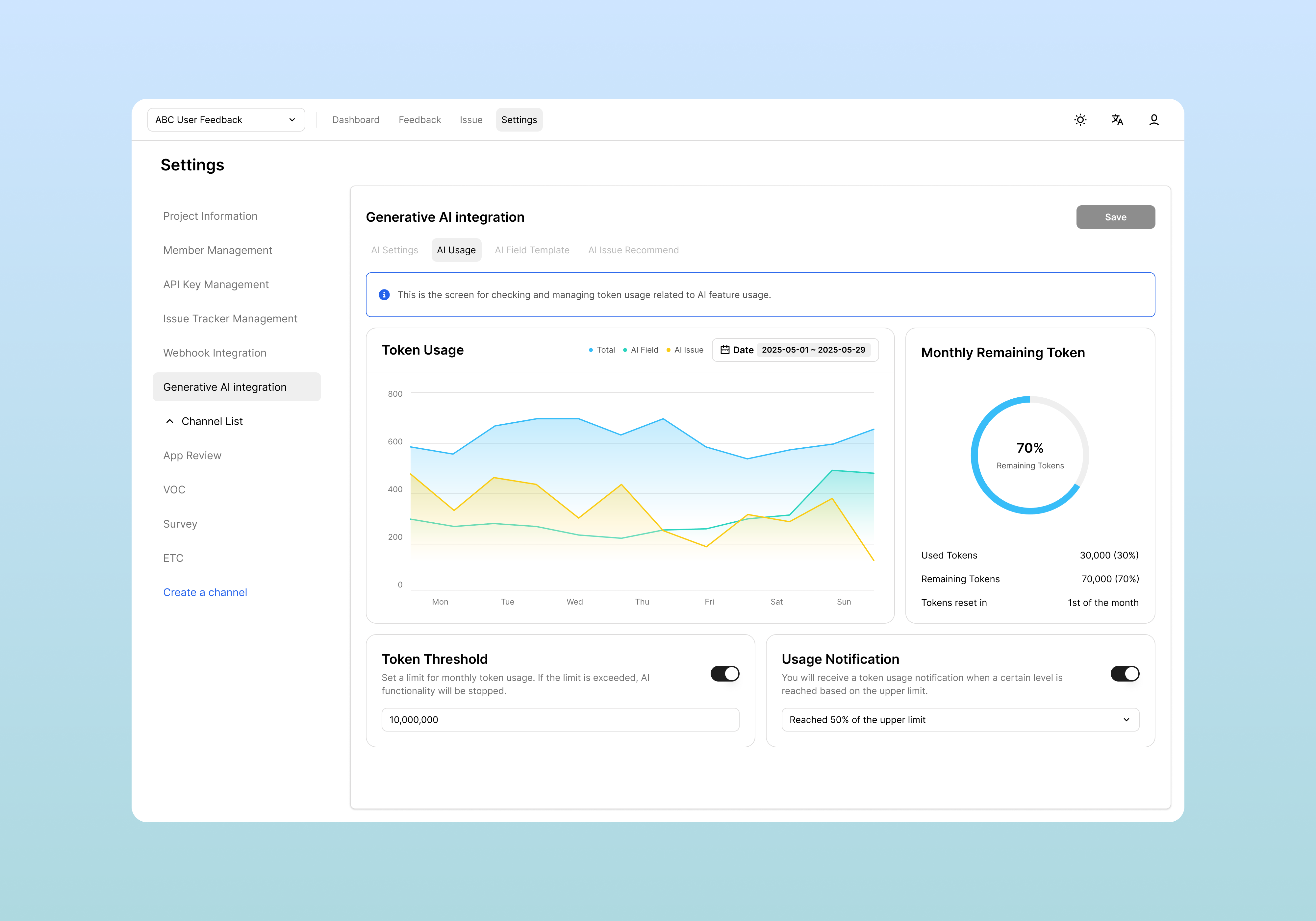
You can monitor AI feature usage and costs in the AI Usage tab.
Usage Dashboard
Information you can check:
- Daily/monthly API call count
- Token usage (input/output separately)
- Usage distribution by feature (AI fields vs issue recommendations)
AI Field Template Management
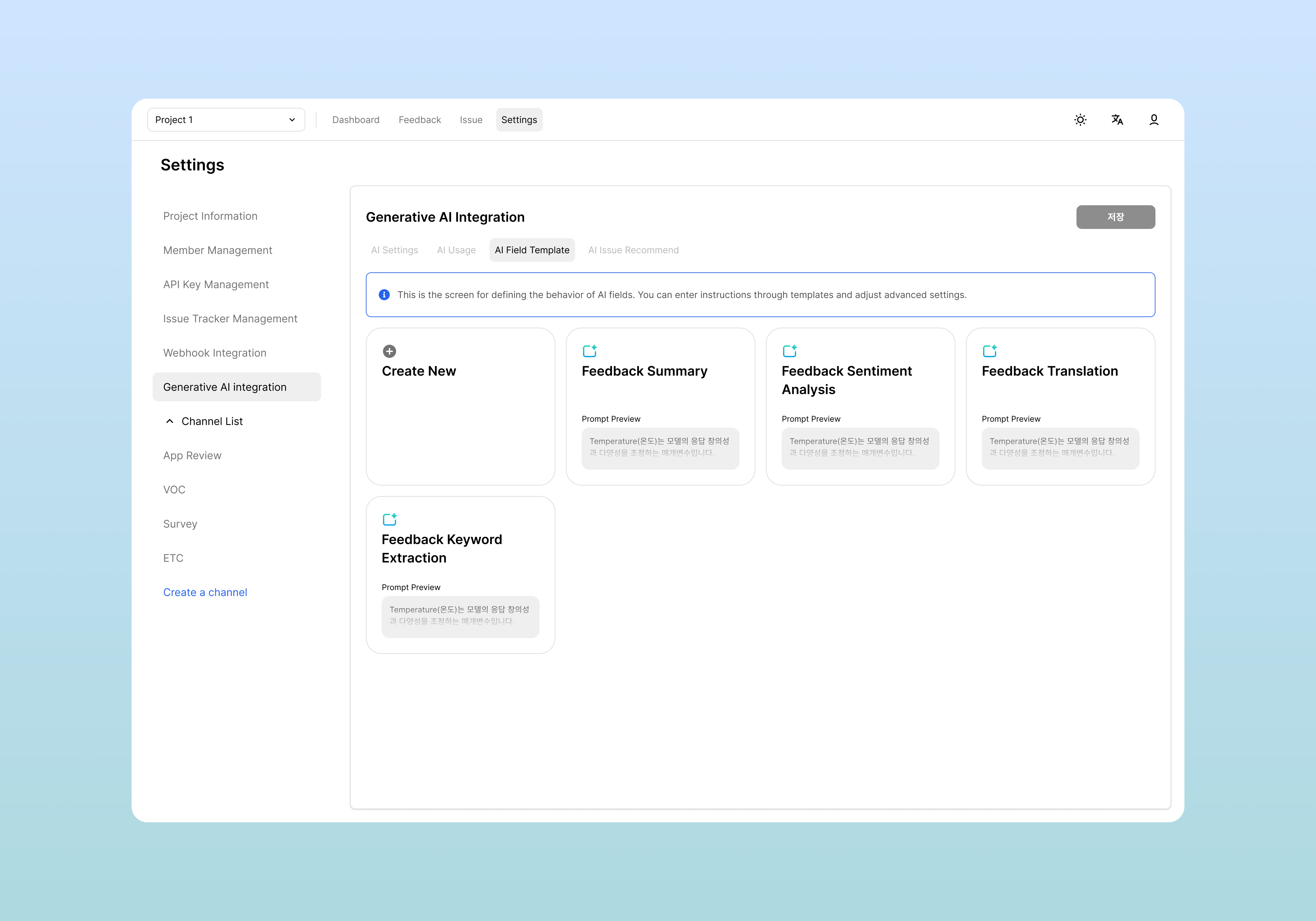
After completing AI settings, you can manage automatic feedback analysis templates in the AI Field Template tab.
Default Templates
Default templates provided by the system:
| Template | Description | Usage Example |
|---|---|---|
| Feedback Summary | Summarize feedback in one sentence | Grasp core of long feedback |
| Sentiment Analysis | Sentiment analysis (positive/negative/neutral) | Analyze customer satisfaction trends |
| Translation | Translate feedback to English | Integrate multilingual feedback analysis |
| Keyword Extraction | Extract 2-3 core keywords | Auto-tag issue categories |
Creating Custom Templates
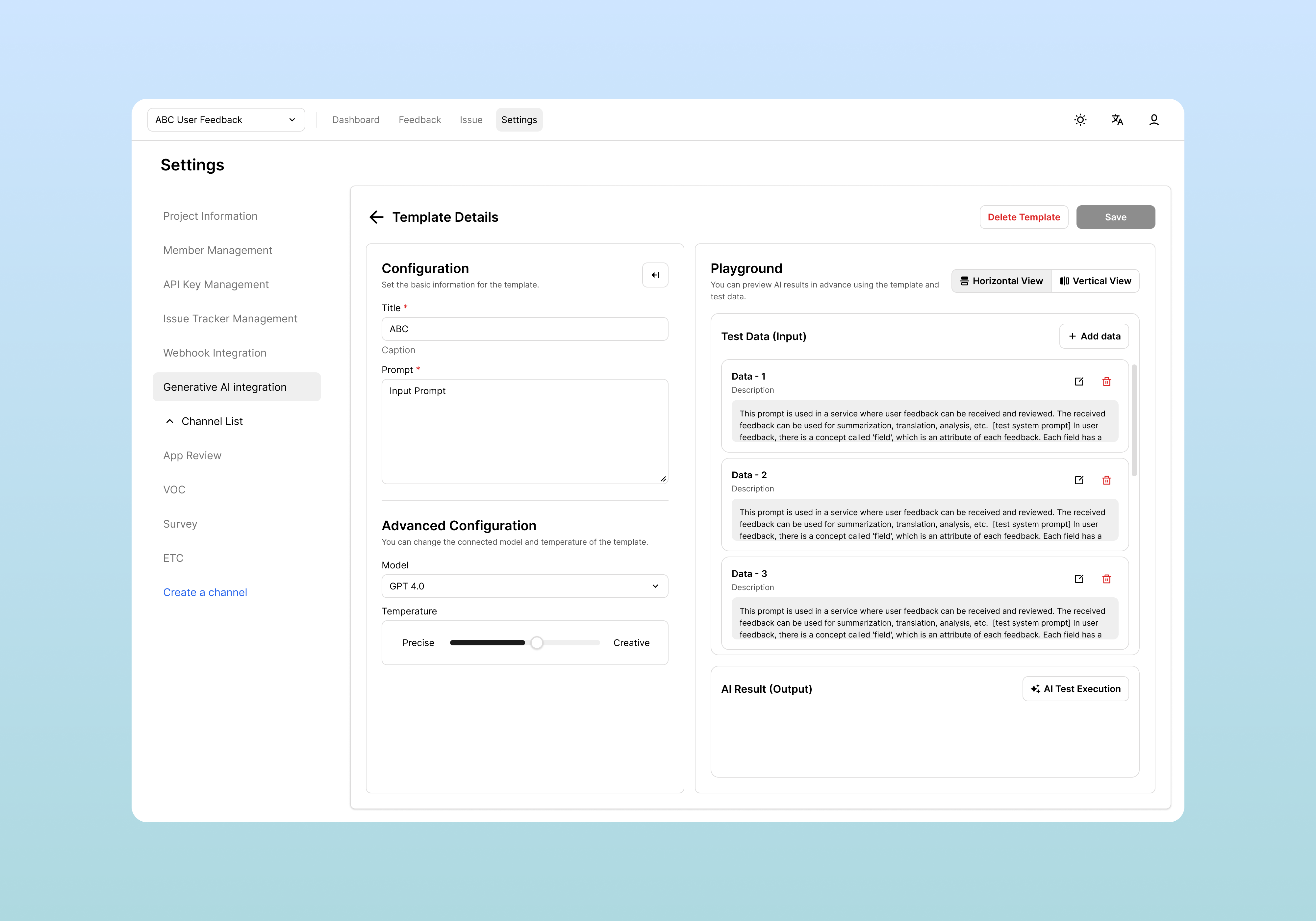
- Click the Create New card
- Enter template information
| Item | Description |
|---|---|
| Title | Template name |
| Prompt | Instruction sentence for AI |
| Model | Select AI model to use |
| Temperature | Creativity adjustment (0.0~1.0) |
- Test in Playground
- Enter test feedback with "Add Data" button
- Check results by clicking "AI test execution"
Template Editing and Deletion
- Click template card → edit
- Delete with Delete Template button
- Deletion may affect AI fields using that template
Applying AI Fields to Channels
After creating AI field templates, you must apply them as actual channel fields to view AI analysis results in feedback.
1. Add AI Field in Field Management
Add AI fields in Settings > Channel List > [Select Channel] > Field Management.
AI Field Setting Items
| Item | Description | Required |
|---|---|---|
| Key | Unique field identifier | Required |
| Display Name | Name displayed in UI | Required |
| Format | Select aiField | Required |
| Template | Select created AI field template | Required |
| Target Field | Text field to be analyzed | Required |
| Property | Editable or Read Only | Required |
| AI Field Automation | Auto execution | Optional |
Setting Example
Key: sentiment_analysis
Display Name: Sentiment Analysis
Format: aiField
Template: Feedback Sentiment Analysis
Target Field: message
Property: Read Only
AI Field Automation: ON (auto execution)
2. Template Connection and Target Field Setting
Select the AI field template created earlier from the Template dropdown.
Target Field specifies the fields to be analyzed by AI
3. AI Field Automation Setting
Select execution method through AI Field Automation toggle:
- ON (Auto execution): Automatically execute AI analysis when new feedback is registered
- OFF (Manual execution): User must manually click execution button
Checking AI Analysis Results in Feedback
After AI field settings are complete, you can check AI analysis results in the feedback list and detail screens.
Checking in Feedback List
AI fields are added as new columns in the feedback table:
- Summary: Summary generated by AI
- Classification: AI classification results
- Korean: Translation results, etc.
Checking in Feedback Detail Screen
You can check more detailed AI analysis results in the feedback detail view panel:
- Click feedback row → right detail panel opens
- Check AI analysis results by field
- Displayed with analysis results for each AI field
Manual AI Analysis Execution
You can manually execute AI analysis in the feedback detail screen.
Using Run AI Button
- Click Run AI button in feedback detail screen
- AI analysis executes and results are automatically entered in that field
- Results can be checked immediately after analysis completes
Manual Execution Usage Scenarios
- Cost savings: Select only needed feedback for AI analysis
- Performance check: Test results of new templates in advance
- Re-analysis: Re-analyze existing feedback after template modification
AI Issue Recommendation Settings
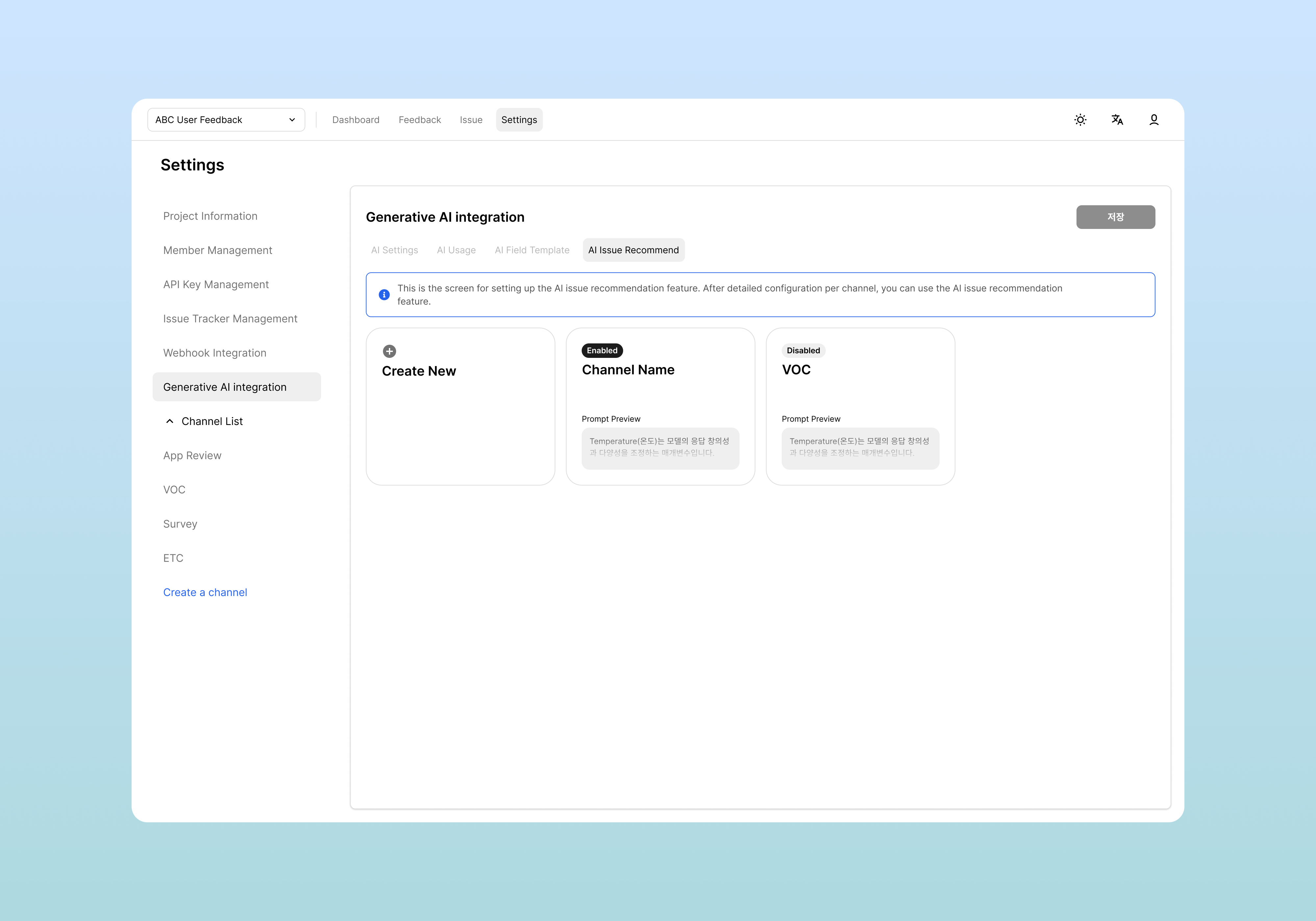
You can set up automatic issue recommendation features based on feedback in the AI Issue Recommendation tab.
Creating AI Issue Recommendation Settings
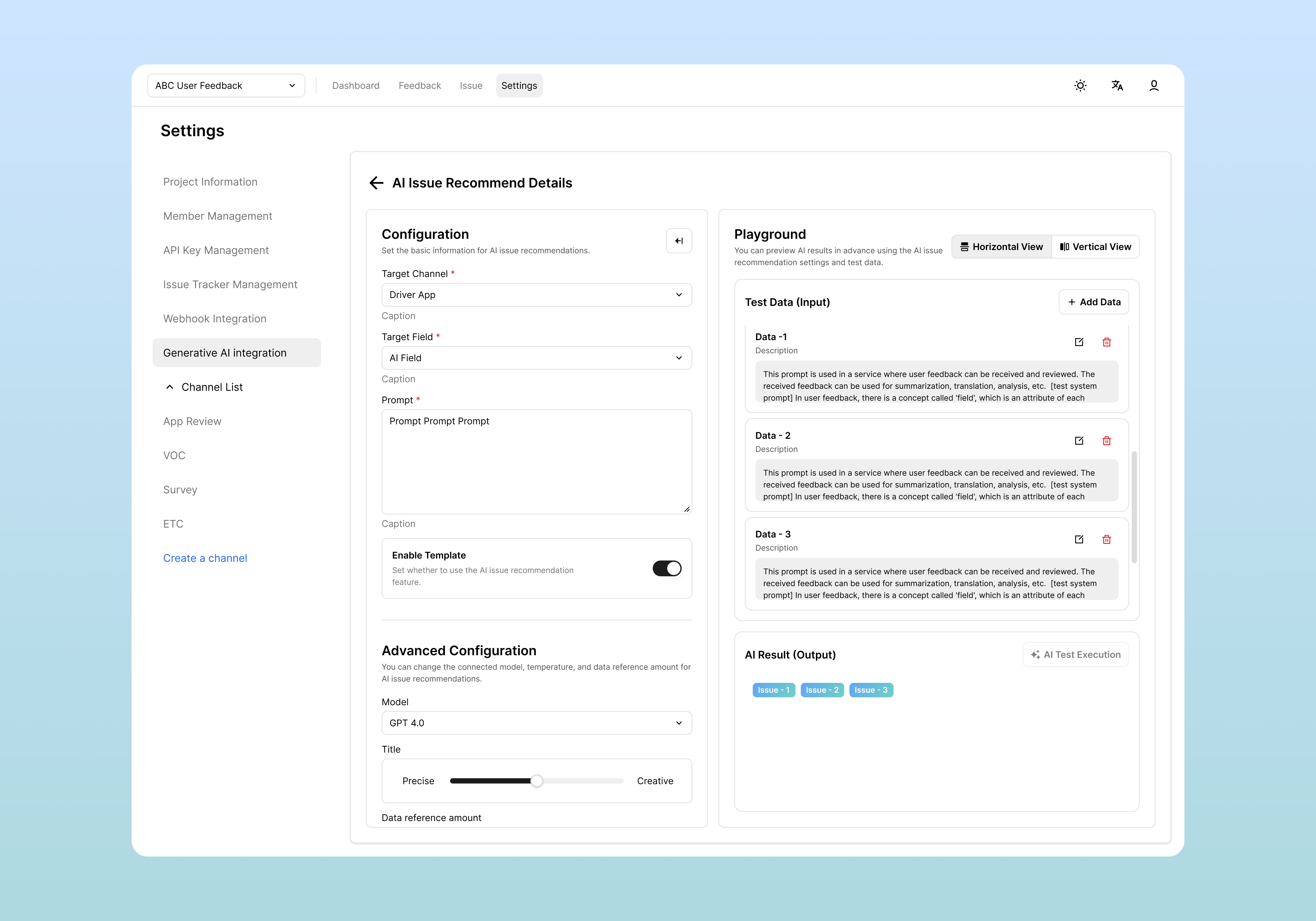
- Click Create New button
- Enter setting items
| Item | Description | Required |
|---|---|---|
| Channel | Select channel to apply | Required |
| Target Field | Field to analyze (e.g., message) | Required |
| Prompt | Recommendation criteria prompt | Optional |
| Enable | Feature activation toggle | Required |
- Advanced Settings
| Setting | Description |
|---|---|
| Model | Model to use |
| Temperature | Creativity adjustment |
| Data Reference Amount | Amount of issues to reference (issues and related feedback) |
Testing AI Issue Recommendation Feature
Test in Playground with entered settings:
- Enter example feedback
- Click "AI test execution"
- Check recommended issue list
Using Recommendations in Actual Feedback
In feedback detail view:
- Check AI recommended issue list
- Select appropriate issues with checkboxes
- Request different recommendations with Retry button
Using Issue Recommendations in Feedback List
In channels with AI issue recommendations configured, you can also use issue recommendation features directly in the feedback list screen.
Usage Method
- Click the + button in the Issue column of the feedback you want to link issues to in the feedback list
- When dropdown menu appears, select "Run AI"
- AI analyzes related issues and displays recommendation list
Checking and Applying Recommendation Results
After AI analysis completes, from the recommended issue list:
- Check recommended issues
- Select appropriate recommended issues
- Option to create new issues also provided
- After selection, that issue is automatically linked to feedback
Batch Processing Usage
You can use AI issue recommendations even when multiple feedback are selected, enabling efficient feedback classification:
- Select multiple rows in feedback list (using checkboxes)
- Execute AI issue recommendations from top batch operation menu
- Check and apply recommended issues for each feedback
Related Documents
- Field Settings - How to apply AI fields to channels
- Issue Creation and Status Management - How to use AI recommended issues
- Feedback Checking and Filtering - How to check AI analysis results