API Key Settings
API keys are authentication means that allow external systems to securely integrate with ABC User Feedback. This document explains API key creation, management, and security maintenance from a UI perspective.
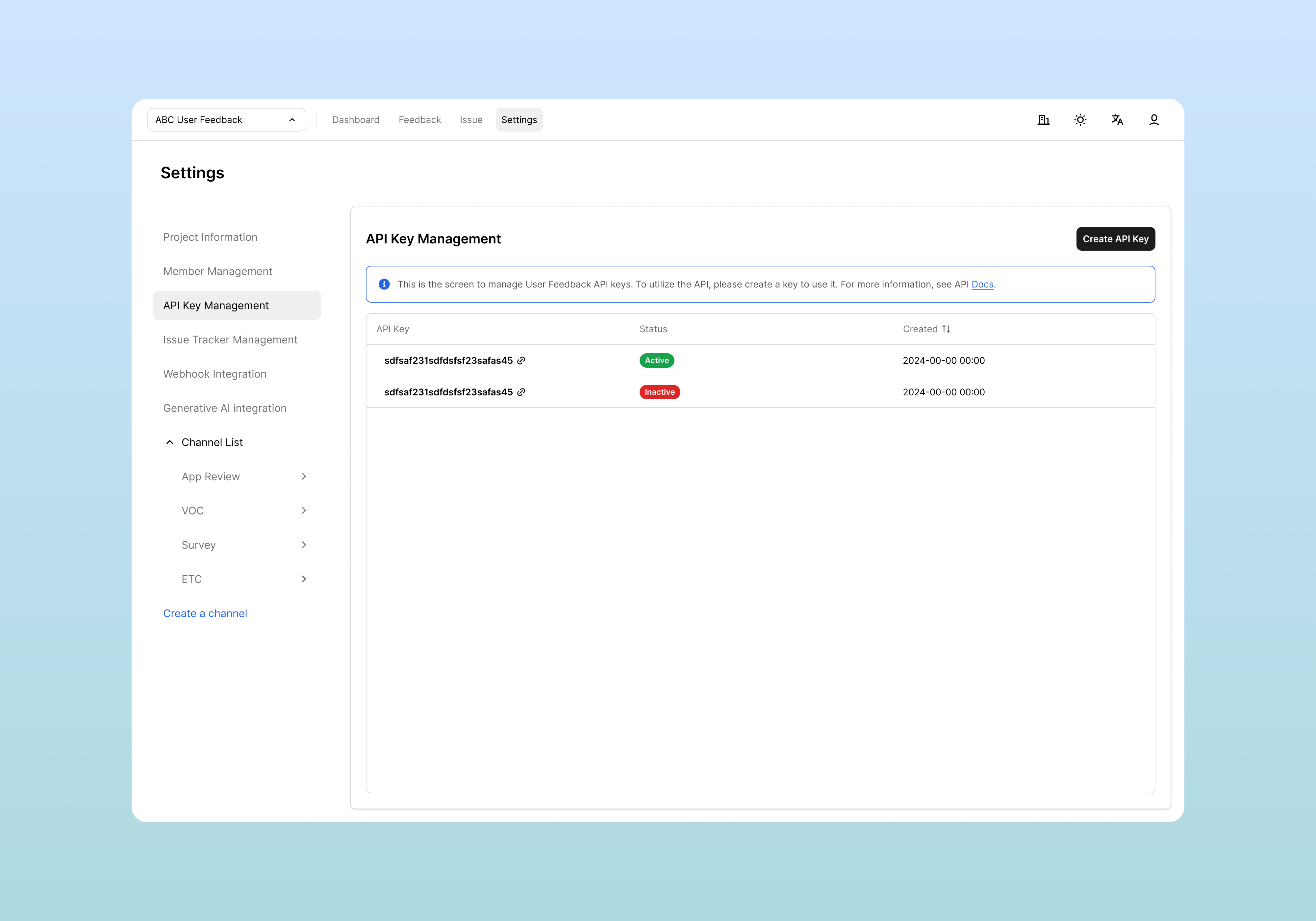
API Key Overview
Role of API Keys
API keys are used for the following purposes:
- External system authentication: Send feedback from websites, mobile apps
- Automation integration: Data collection through batch jobs, scripts
- Third-party tool connection: Integration with analysis tools, monitoring systems
- Security control: Independent access permission management per project
Security Features
- Per-project independence: Separate keys issued for each project
- Status management: Can be controlled immediately with Active/Inactive status
Creating API Keys
Access Method
- Click Settings in the top menu
- Select API Key Management from the left menu
Key Creation Process
1. Click Create Button
Click the Create API Key button at the top right of the API Key Management screen.
2. Auto Generation and Display
A new API key is automatically generated and displayed in a popup immediately upon clicking the button.
Popup Components:
- API Key Value: Displays the full key string
- Copy Button: Instantly copies to clipboard
Managing API Key List
Key List Screen Structure
Created API keys are managed in table format.
Table Column Information
| Column | Description | Display Format |
|---|---|---|
| API Key | Generated key value | AbcdEfgh... |
| Status | Current activation status | Active / Inactive |
| Created | Key creation date/time | 2024-03-15 14:30 |
| Actions | Management action buttons | Status change, delete buttons |
Key Identification Method
Since the full key value cannot be viewed again, distinguish keys using the following methods:
- Creation time: Check when the key was created
- Usage purpose memo: Record the key's purpose separately
API Key Status Management
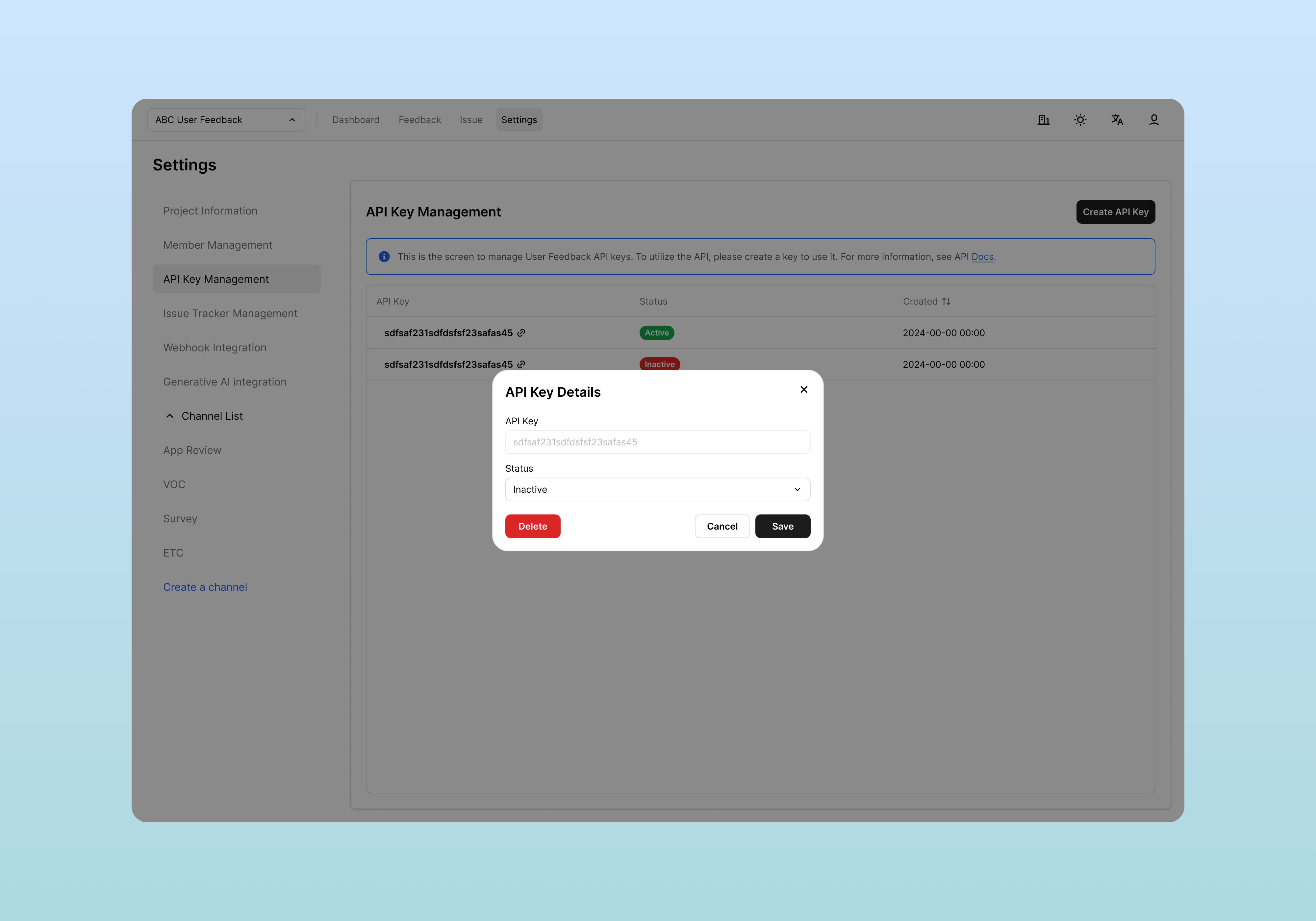
Active / Inactive Toggle
Each API key can be activated/deactivated immediately.
Status Meanings
| Status | Description | API Call Result |
|---|---|---|
| Active | Available for actual API calls | Normal processing |
| Inactive | Call blocked state | 401 Unauthorized |
Status Change Method
- Click the toggle switch in the Status column of the API key list
- Status changes immediately and is reflected on screen
- External systems using that key are immediately affected
Deleting API Keys
When to Delete
API keys should be deleted in the following cases:
- Key exposure: When a key is accidentally made public
- Project termination: When use of that project ends
- Security policy: According to regular key rotation policy
- Unused keys: Cleanup of keys no longer in use
Deletion Method
1. Click Delete Button
Click the delete button in the Actions column of the key you want to delete in the key list.
2. Confirm Deletion
Approve deletion in the confirmation dialog.
3. Deletion Complete
When you click the Delete button, the key is immediately deleted and removed from the list.
Related Documents
- API Integration Guide - Actual integration implementation using API keys
- Project Management - API key management per project