Webhook Settings
Webhooks are a feature that automatically sends notifications to external systems when specific events occur in ABC User Feedback. You can deliver events such as feedback creation and issue status changes in real-time to external services (Slack, Discord, your own server, etc.). For detailed integration guide, refer to the Webhook Integration document.
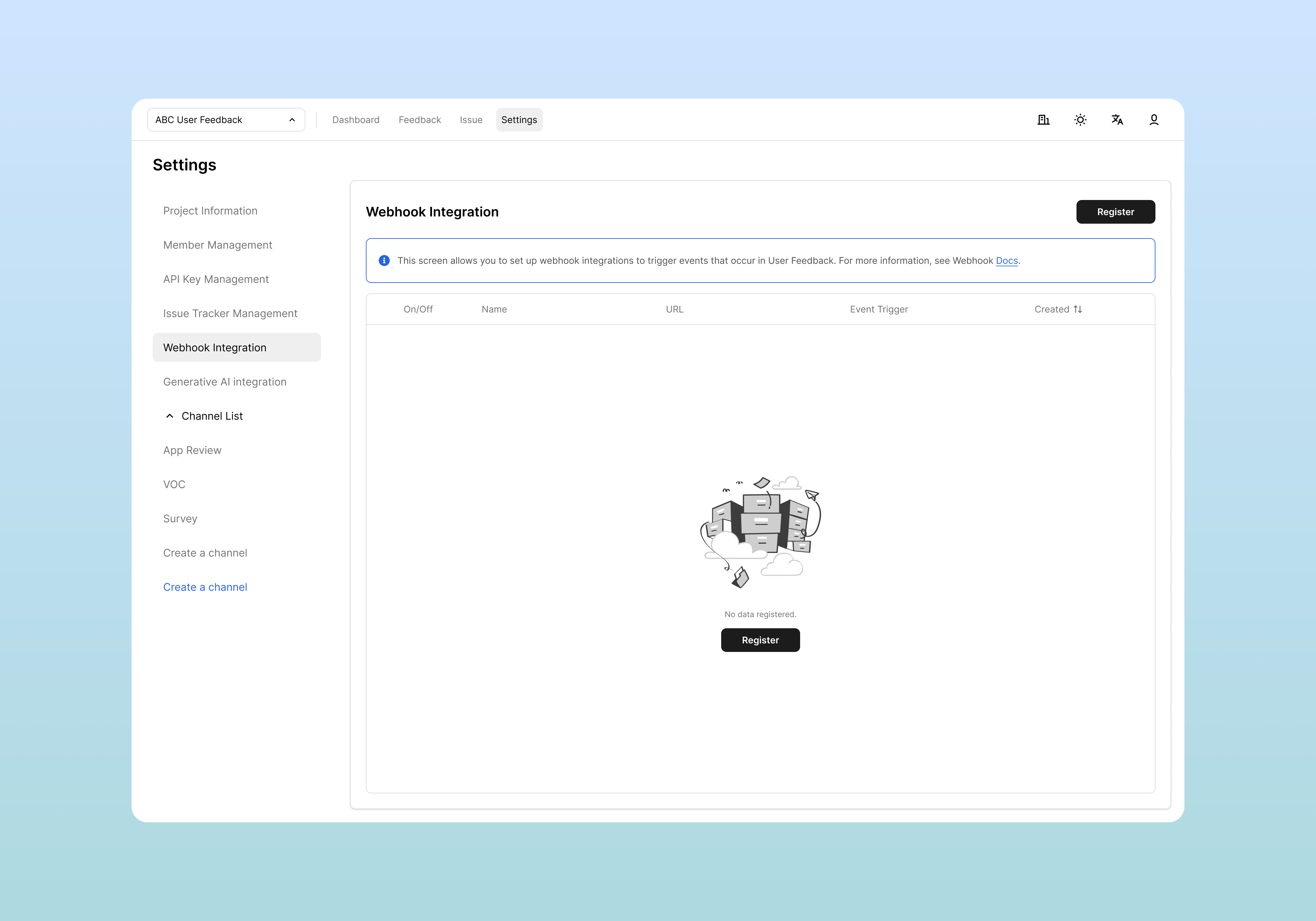
Access Method
- Click Settings in the top menu
- Select Webhook Integration from the left menu
Webhook Integration Screen Overview
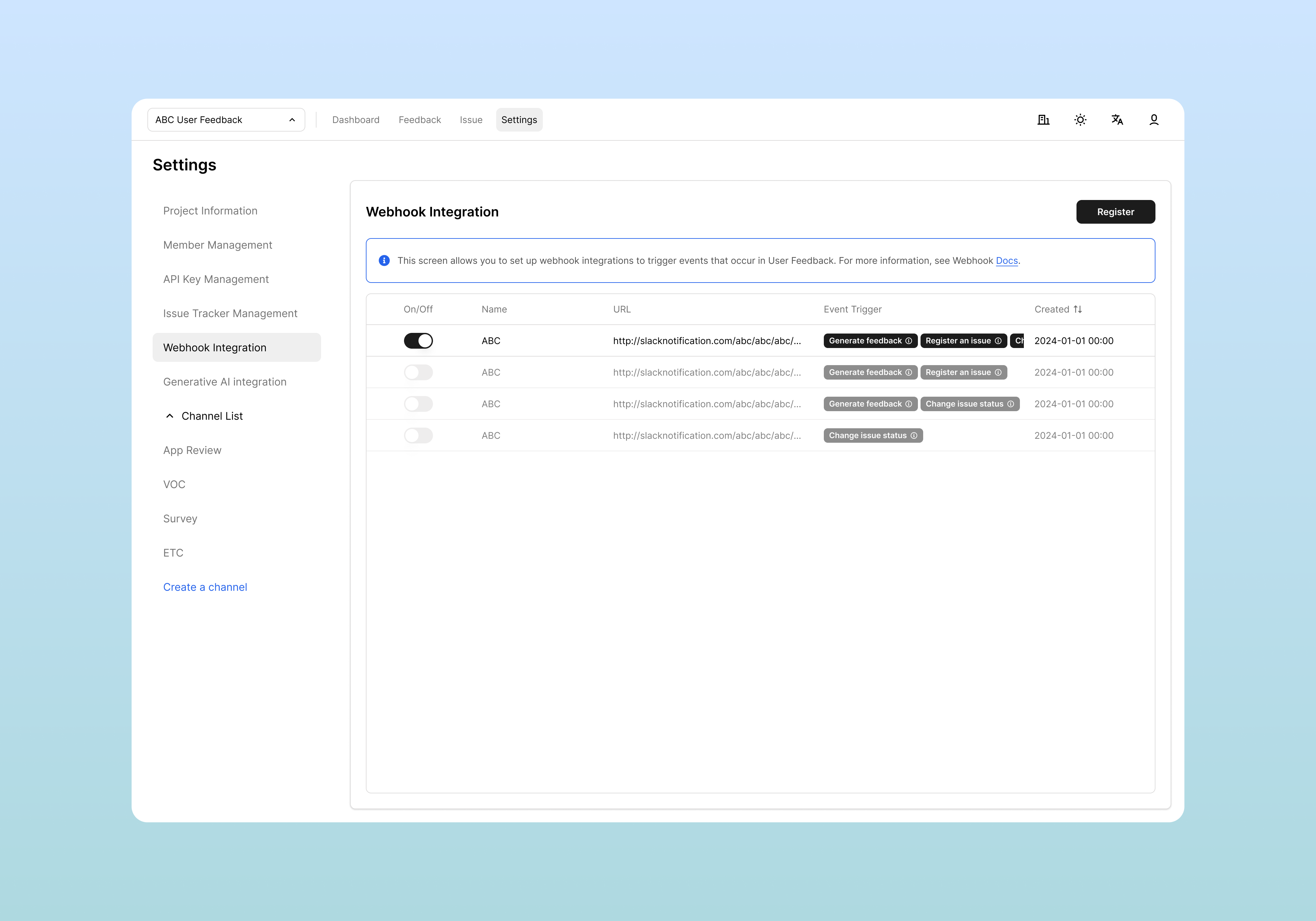
The webhook integration screen is structured as follows:
Webhook List Table Structure
| Column | Description |
|---|---|
| On/Off | Webhook activation/deactivation toggle switch |
| Name | Webhook name |
| URL | External endpoint to receive notifications |
| Event Trigger | Subscribed event triggers |
| Created | Webhook creation date/time |
Creating New Webhooks
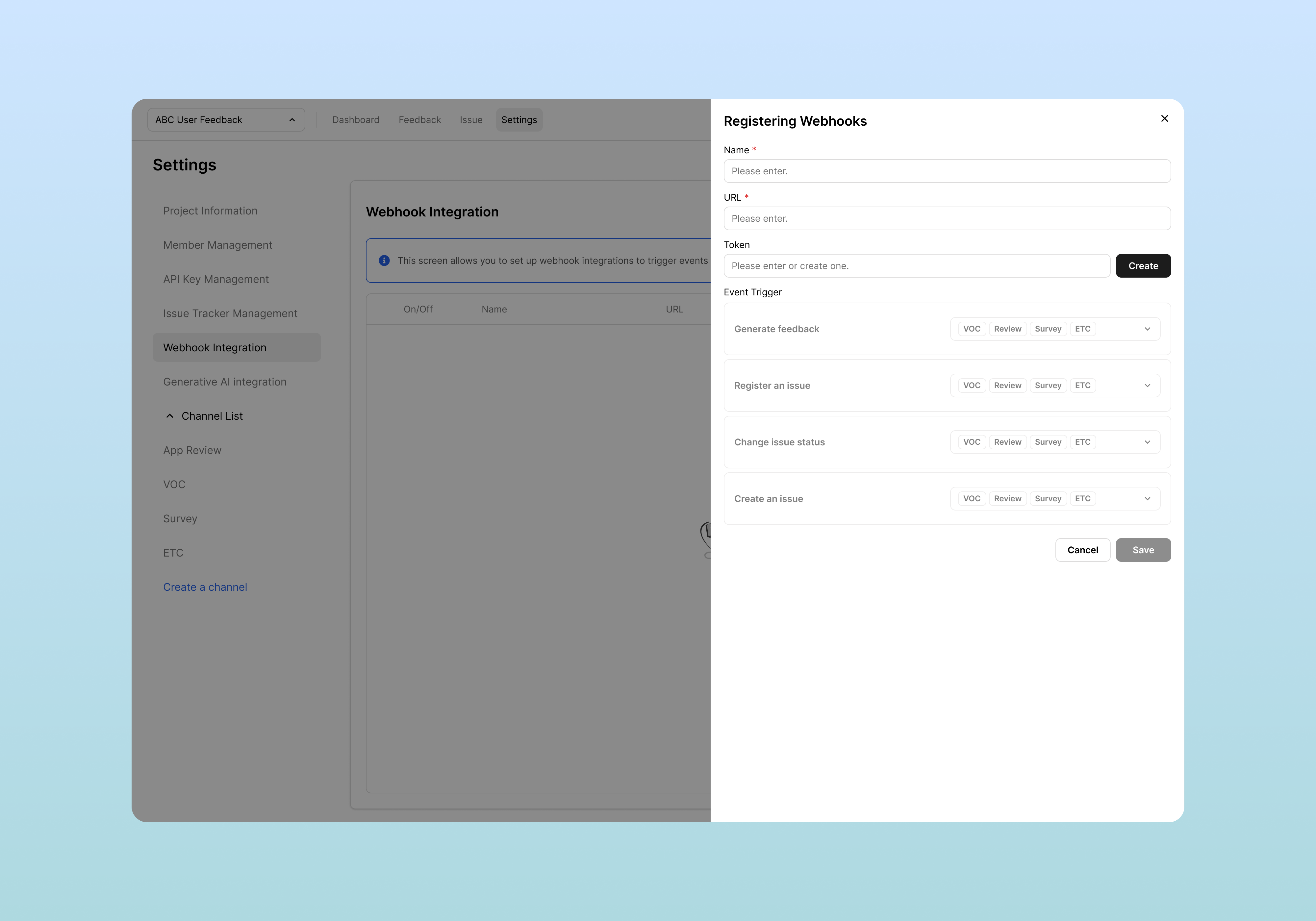
1. Start Webhook Registration
Click the Register Webhook button at the top right to open the webhook registration modal.
2. Enter Basic Information
Required Input Items
| Item | Description |
|---|---|
| Name | Name for webhook identification |
| URL | Endpoint to receive HTTP POST requests |
3. Token Setting (Optional)
You can set a token for authentication in the Token field:
- Click the Generate button to auto-generate
- Or enter token value directly
4. Event Trigger Selection
You can select events to subscribe to per channel:
Supported Event Types
For each channel (VOC, Review, Survey, VOC Test), you can select the following events:
| Event Type | Description |
|---|---|
| Feedback Creation | When new feedback is registered |
| Issue Registration | When new issue is created |
| Issue Status Change | When issue status is changed |
| Issue Creation | When issue is linked to feedback |
5. Save Webhook
After entering all information:
- Click the OK button to create the webhook
- You can cancel with the Cancel button
Webhook Status Management
Activation/Deactivation Toggle
You can change the status by clicking the toggle switch in the On/Off column of each webhook in the webhook list:
- On (Active): Real-time transmission when events occur
- Off (Inactive): Webhook is maintained but transmission is stopped
Temporary Deactivation Scenarios
- When external server is under maintenance
- When changing webhook URL
- When spam notifications need to be prevented
Webhook Editing and Deletion
Webhook Editing
Click the webhook you want to edit in the webhook list to open the edit modal:
Editable Items
- Webhook name
- Target URL change
- Token value modification
- Event type addition/removal
Webhook Deletion
To completely remove a webhook:
- Select delete option in the edit modal
- Or click delete button directly in the list (if delete button exists in UI)
Webhook Testing and Validation
Manual Validation Method
- Feedback Creation Test:
- Register test feedback to check
Feedback Creationevent
- Register test feedback to check
- Issue Management Test:
- Create issues or change status to check related events
- External Service Check:
- Check message reception in Slack, Discord, etc.
Common Integration Examples
Slack Webhook Settings
Name: Slack Notifications
URL: https://hooks.slack.com/services/T00000000/B00000000/XXXXXXXX
Events: Feedback Creation, Issue Registration (all channels)
Discord Webhook Settings
Name: Discord Development Team Notifications
URL: https://discord.com/api/webhooks/123456789/abcdefghijk
Events: Issue Status Change (VOC channel only)
Custom Server Integration
Name: Internal Analysis System
URL: https://api.yourcompany.com/webhooks/feedback
Token: your-generated-token
Events: All events (all channels)
Related Documents
- Webhook Developer Guide - How to implement webhook receiving server
- API Key Management - API key-based authentication settings